Instagram's "save" button on iPhone doesn't save anything to your device. It bookmarks the Reel inside the Instagram app. If you delete the app, lose your account, or just want the video offline, that bookmark is useless.
To get an actual video file saved to your iPhone's Camera Roll, you need to go through Safari. Here's exactly how.
Step-by-Step: Download Instagram Reels on iPhone
Step 1: Copy the Reel link
Open the Instagram app and find the Reel you want to save. Tap the three-dot menu (⋯), usually in the bottom-right or top-right corner depending on where you're viewing the Reel. Tap Copy Link.
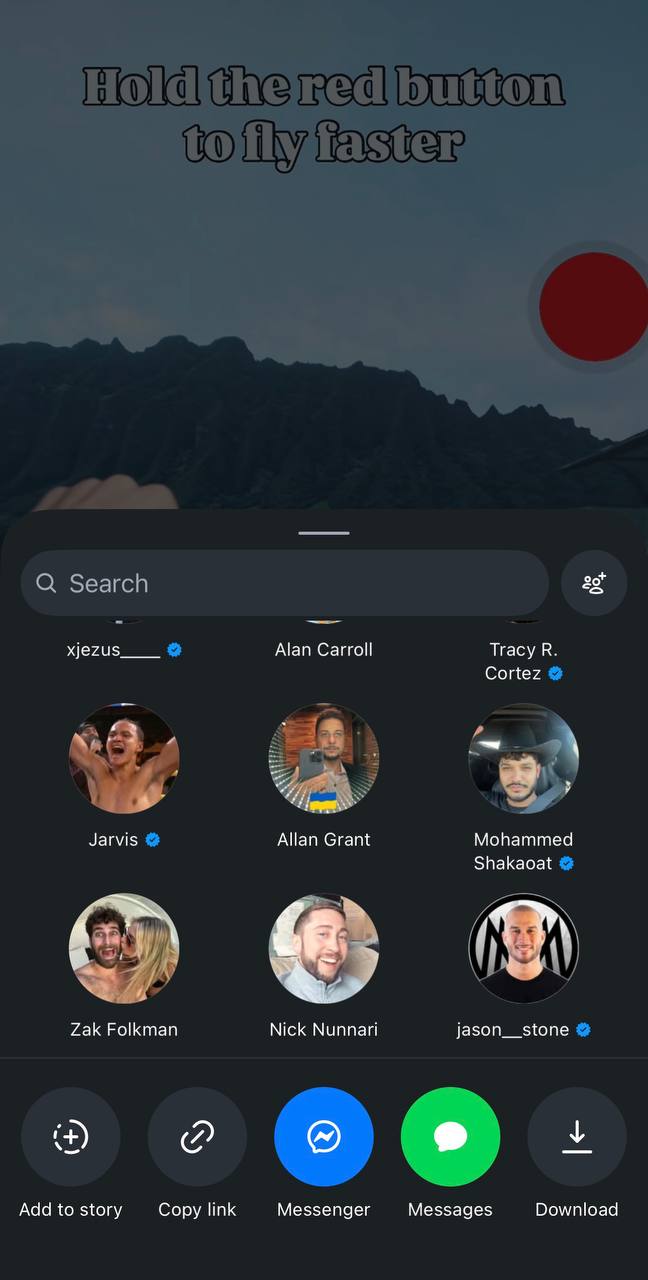
You can also share the Reel to yourself in Messages or Notes and copy the link from there.
Step 2: Open Safari and paste
Switch to Safari, Apple's built-in browser. Go to savethat.video and tap the input box. Long-press and tap Paste to drop in the Reel URL. Tap Save it.
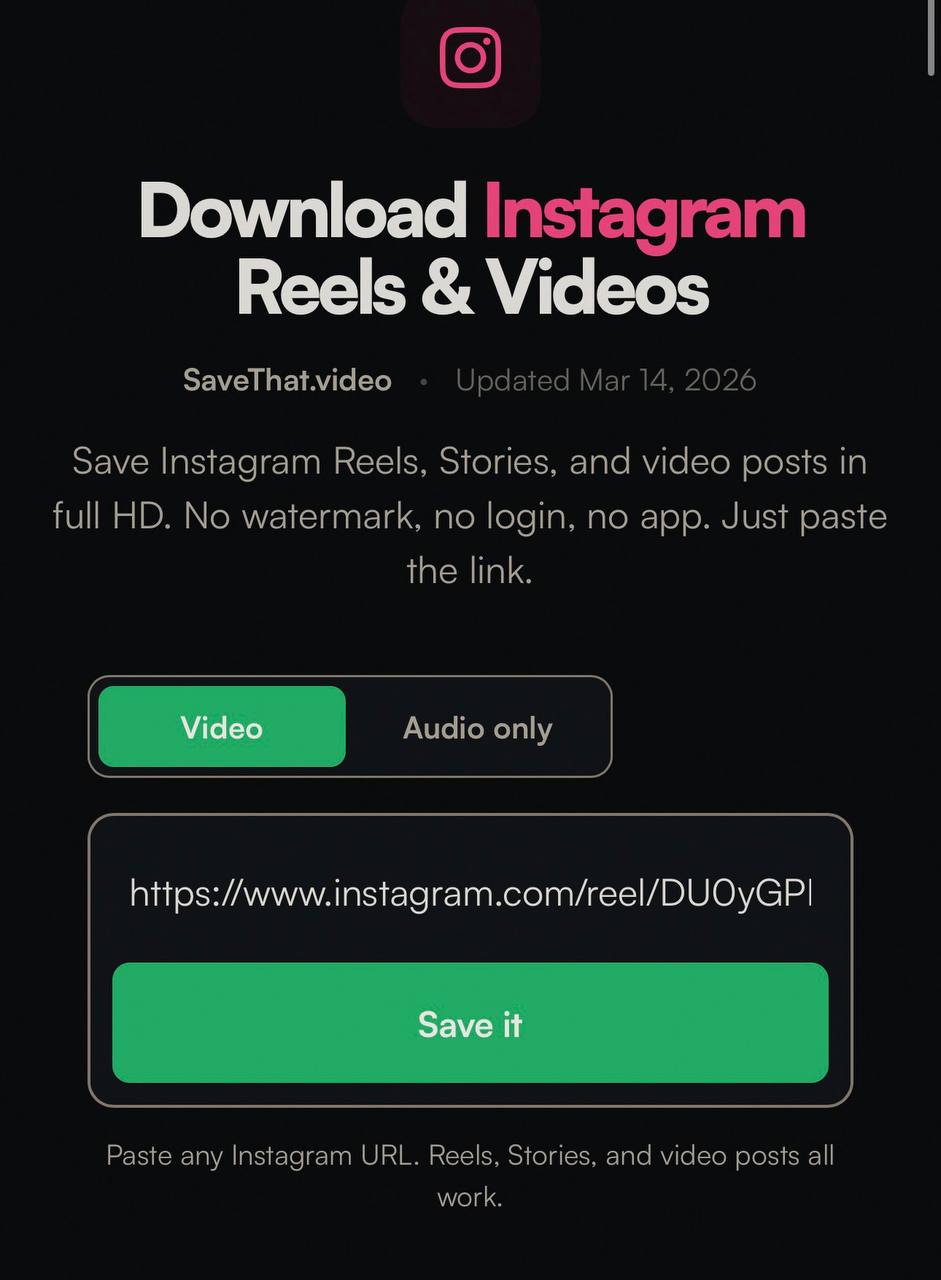
Safari works best here because it has the deepest integration with iPhone's file system. Chrome works too, but Safari handles downloads more smoothly.
Step 3: Download the file
Once the tool processes the link, you'll see a download button. Tap it. Safari will show a confirmation popup. Tap Download.
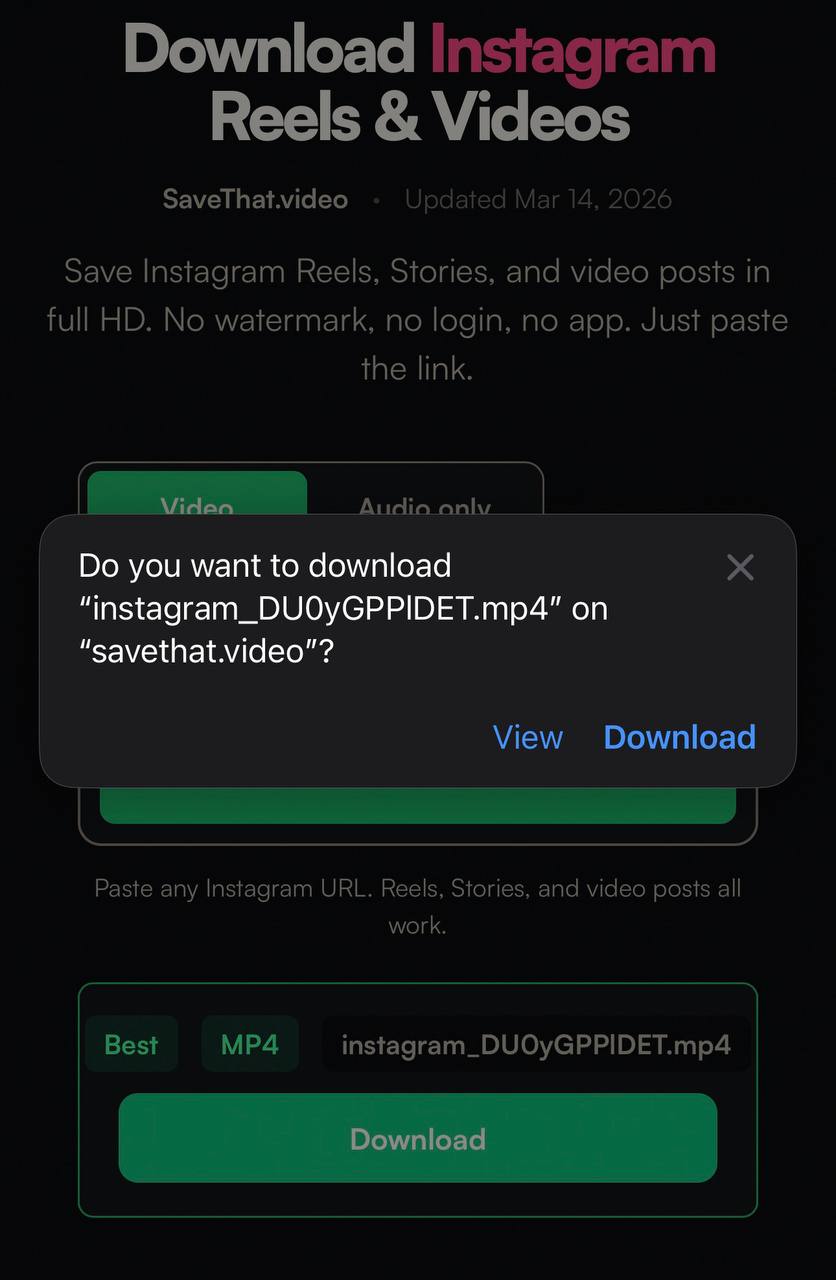
The MP4 file saves to your Files app, inside the Downloads folder.
If Safari plays the video instead of downloading: go back, long-press the download button, and tap Download Linked File. This forces Safari to save the file rather than streaming it.
Step 4: Save to Camera Roll
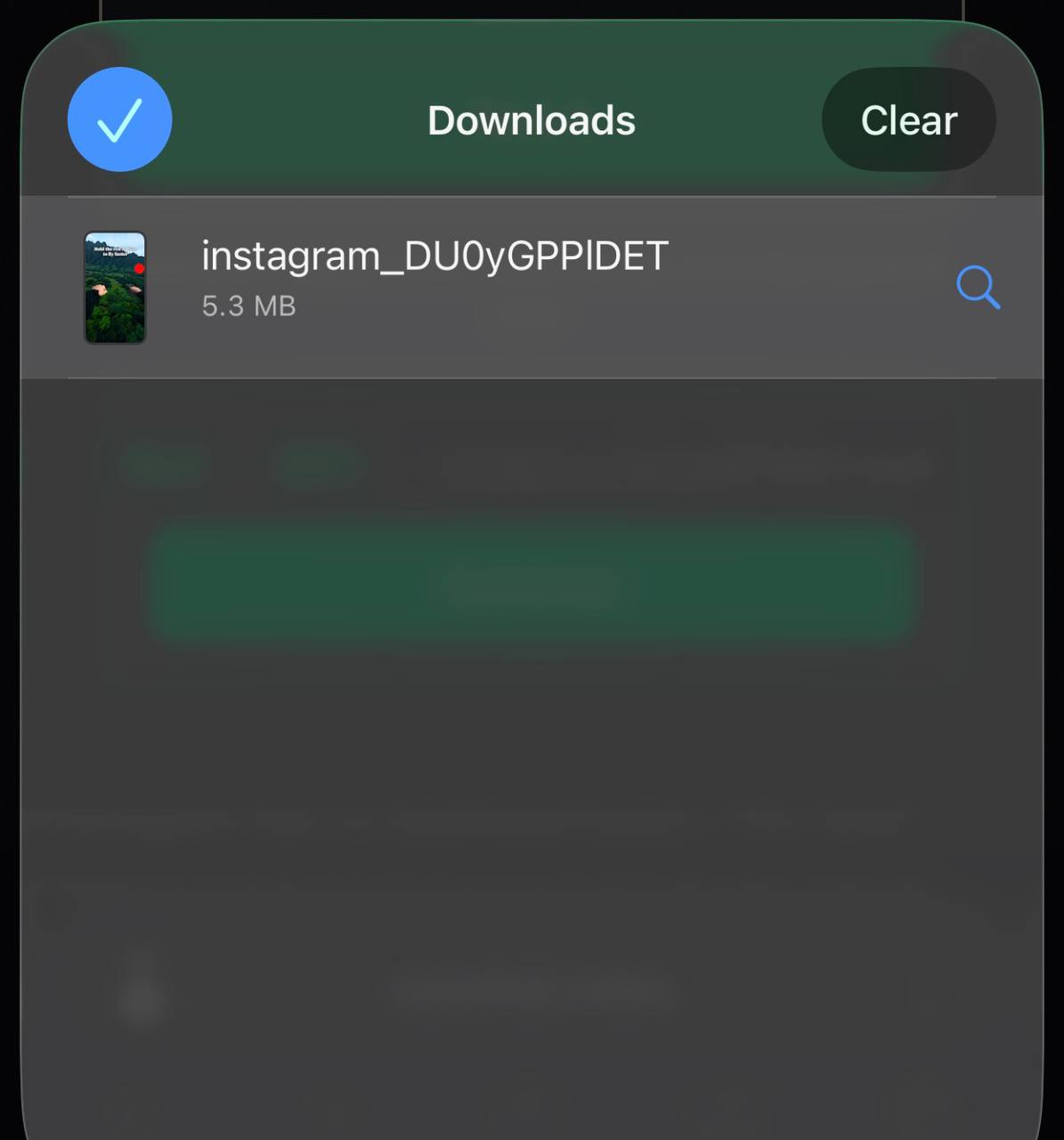
Tap the download icon (the arrow in the top-right of Safari) to open the Downloads panel. You'll see the video file listed there. Tap the file to open it, then tap the share icon (the square with an arrow) and select Save Video. The Reel now appears in your Photos app alongside your regular camera roll videos.
Why Safari and Not Chrome?
Both work, but Safari has two advantages on iPhone. First, its download manager is native and integrates directly with the Files app. Second, moving files from Files to Camera Roll is a two-tap process in Safari. Chrome sometimes adds extra steps.
If you prefer Chrome: the download process is similar, but the file might end up in Chrome's internal downloads rather than the system Files app. You can still access it through Chrome's download menu.
Saving Instagram Stories on iPhone
Stories work the same way: copy the link, paste, download. The only difference is that Stories expire after 24 hours, so you need to do this while the Story is still live.
For a dedicated walkthrough, see the Instagram Story downloader or the full guide to downloading Instagram Stories. If you want to save Highlights that have been pinned to a profile, the Instagram Highlights downloader handles those as well.
Saving Instagram Photos on iPhone
Photos download even more cleanly than videos. The image saves directly to your Files app, and moving it to Camera Roll is the same process: open the file, share, Save Image.
Screenshots work for photos too, but screenshots capture your screen at phone resolution with the Instagram UI visible. The downloaded file is the full-resolution original. For details, see the Instagram photo downloader.
Troubleshooting Common Issues
The download button doesn't appear
Make sure the Reel is from a public account. Private account content can't be accessed by external tools. Also check that you copied the full URL. Partial links won't work.
The video won't play after downloading
This is rare but can happen if the download was interrupted. Delete the file and try again with a fresh link. Make sure you have a stable internet connection.
I can't find the file in Files
Open the Files app and check the Downloads folder under "On My iPhone" or "iCloud Drive". The location depends on your Safari settings. You can change the default download location in Settings > Safari > Downloads.
What Quality Do You Get?
You get the highest quality version Instagram has stored, typically 1080p for most Reels. The quality depends entirely on what the creator originally uploaded. There's no additional compression or quality loss from the download process.
The file is a standard MP4 with H.264 encoding. It plays natively on iPhone, imports into any video editor, and shares to any platform without compatibility issues. If you only need the audio track, you can use the Instagram Reels to MP3 tool to extract it. You can also use the Instagram to MP4 converter for any other Instagram video format.